

Private Cloud Demo
Try Mentra Private Cloud with Acme Industries, our demo company. Sign in as an employee, pair your Mentra Live, and make a Microsoft Teams call from your glasses.
You’ll need:
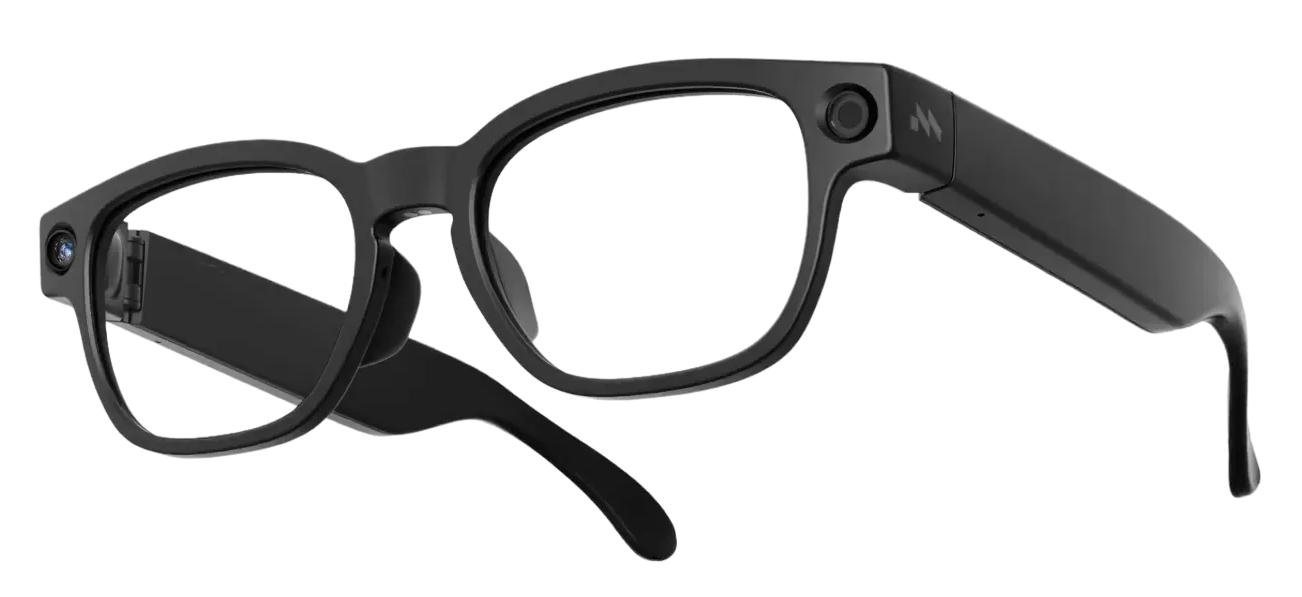
- Mentra Live
- An iPhone or Android phone
- The demo sign-in from your Mentra contact
Steps
Get the Mentra App
Install the Mentra App on your iPhone or Android phone, then open it.
Get the Mentra App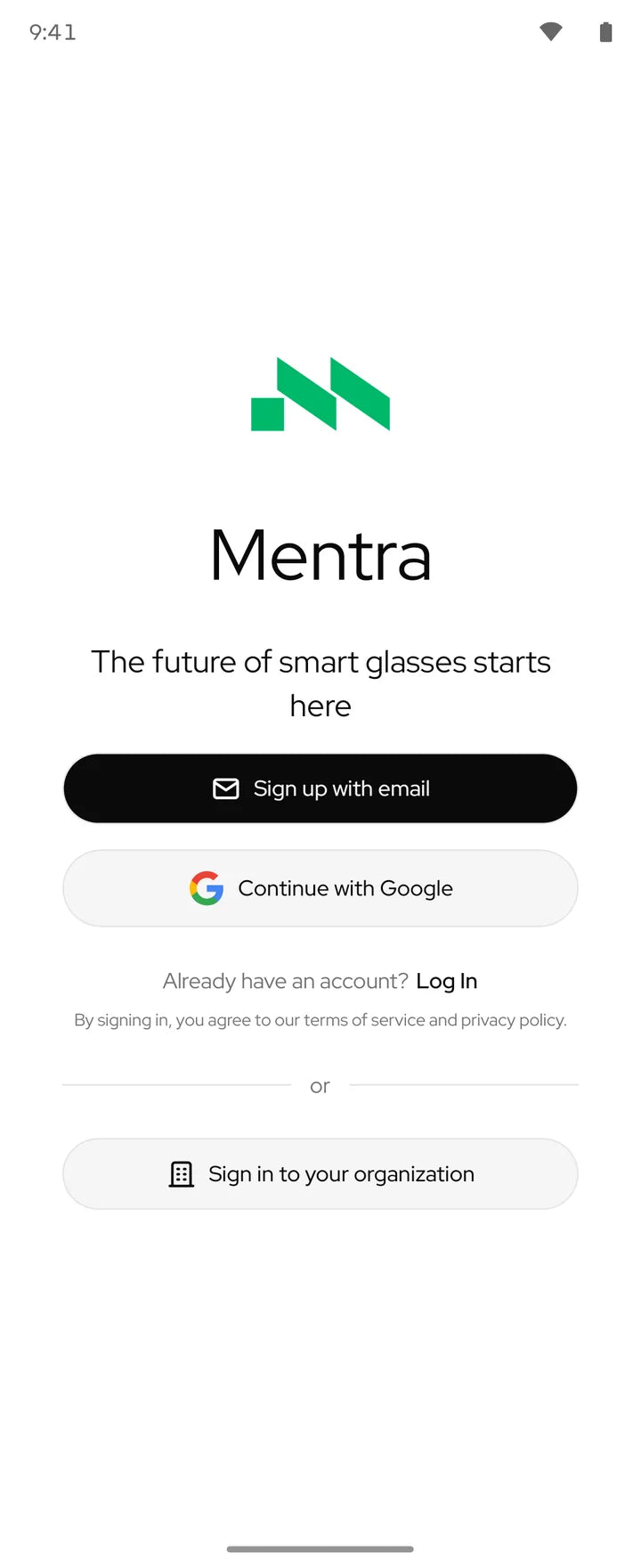
Connect to Acme Industries
Tap Sign in to your organization. Enter Acme’s address and tap Continue.
demo.acmeworkspace.com 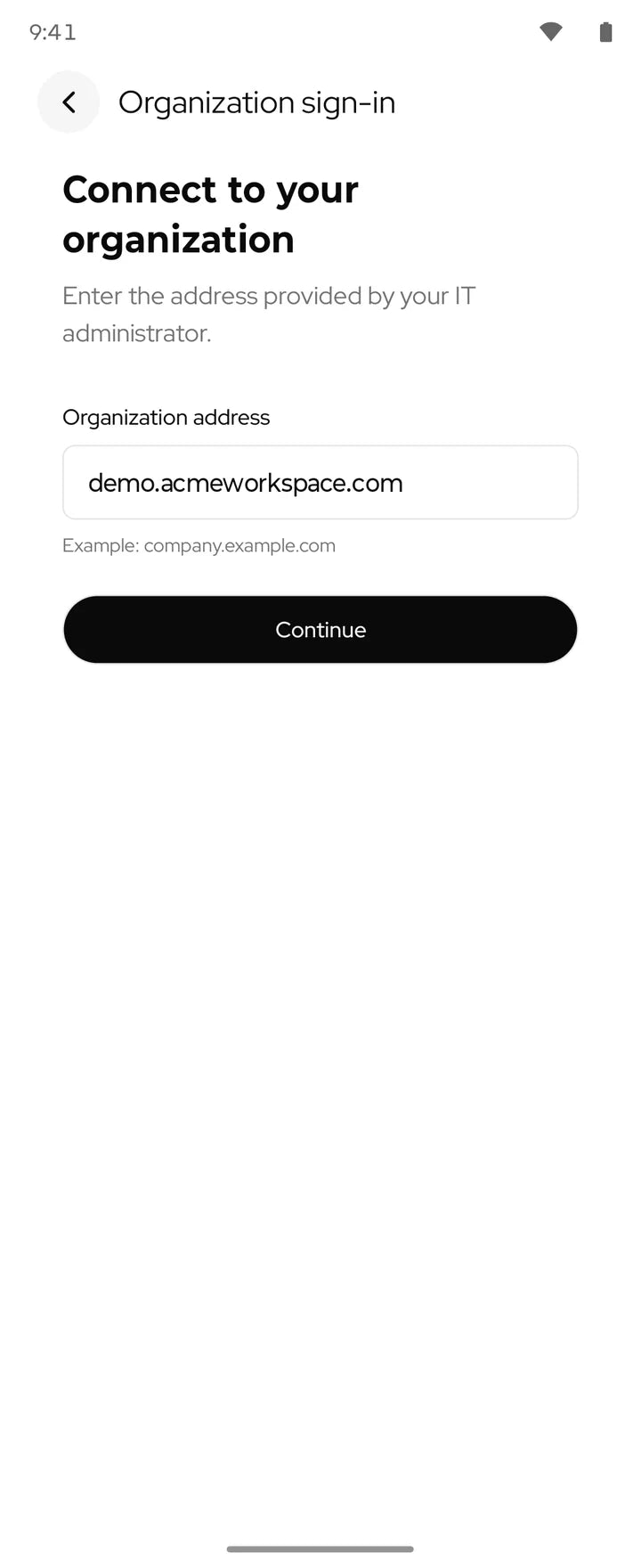
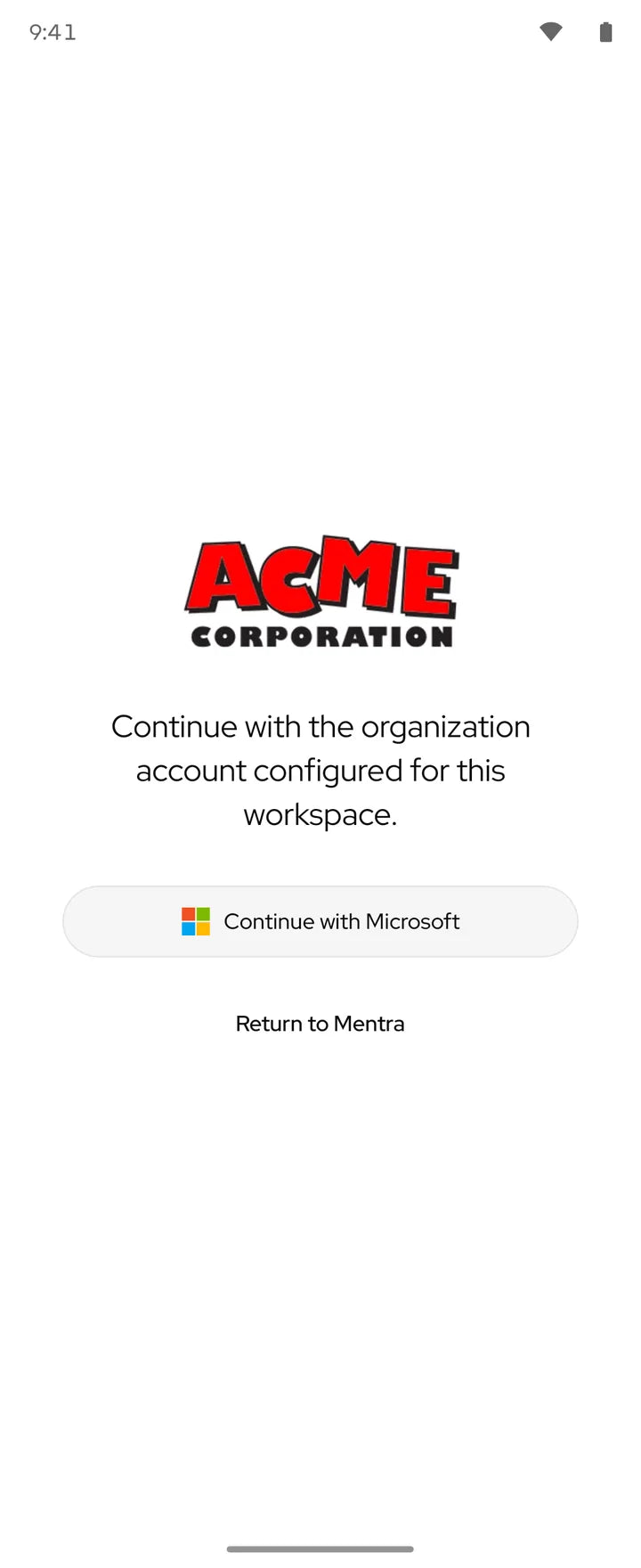
The app shows Acme’s name and logo. Your employees would see your company here. Tap Continue.
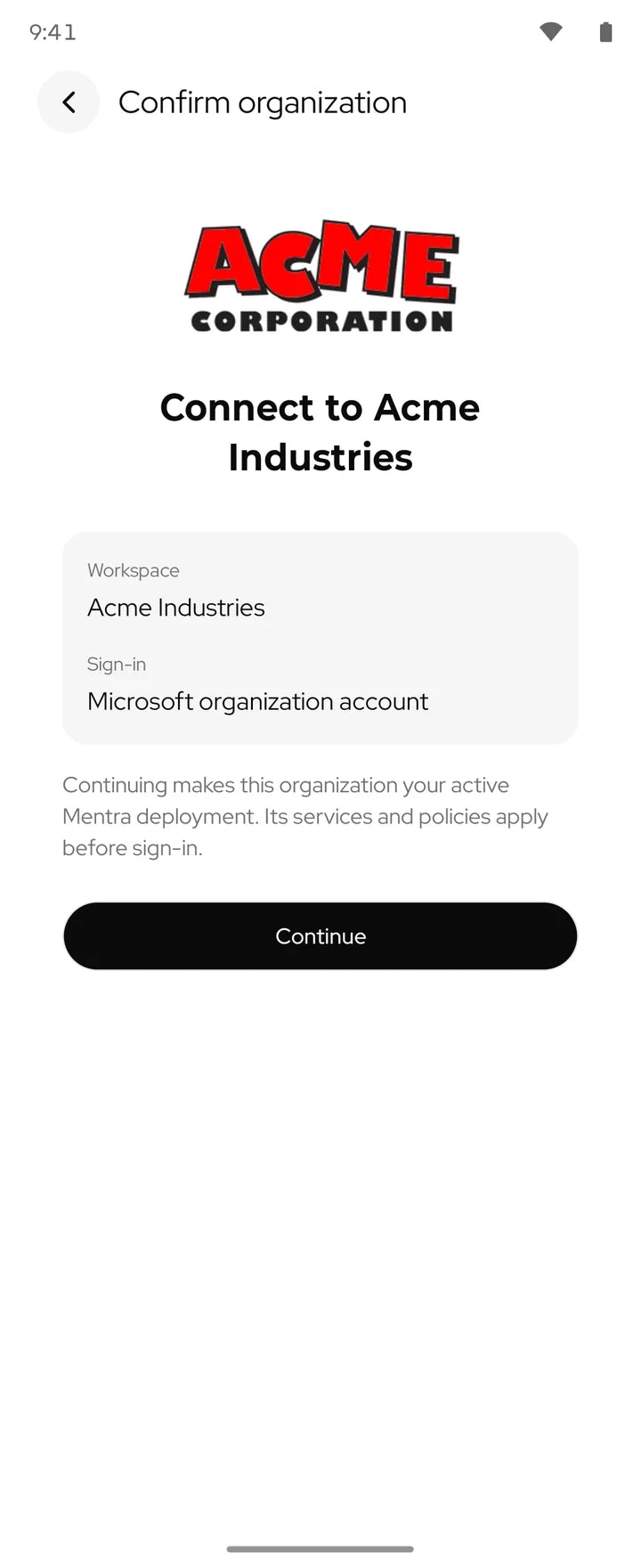
Tap Continue with Microsoft and sign in with the demo email and password from your Mentra contact.
Pair your Mentra Live
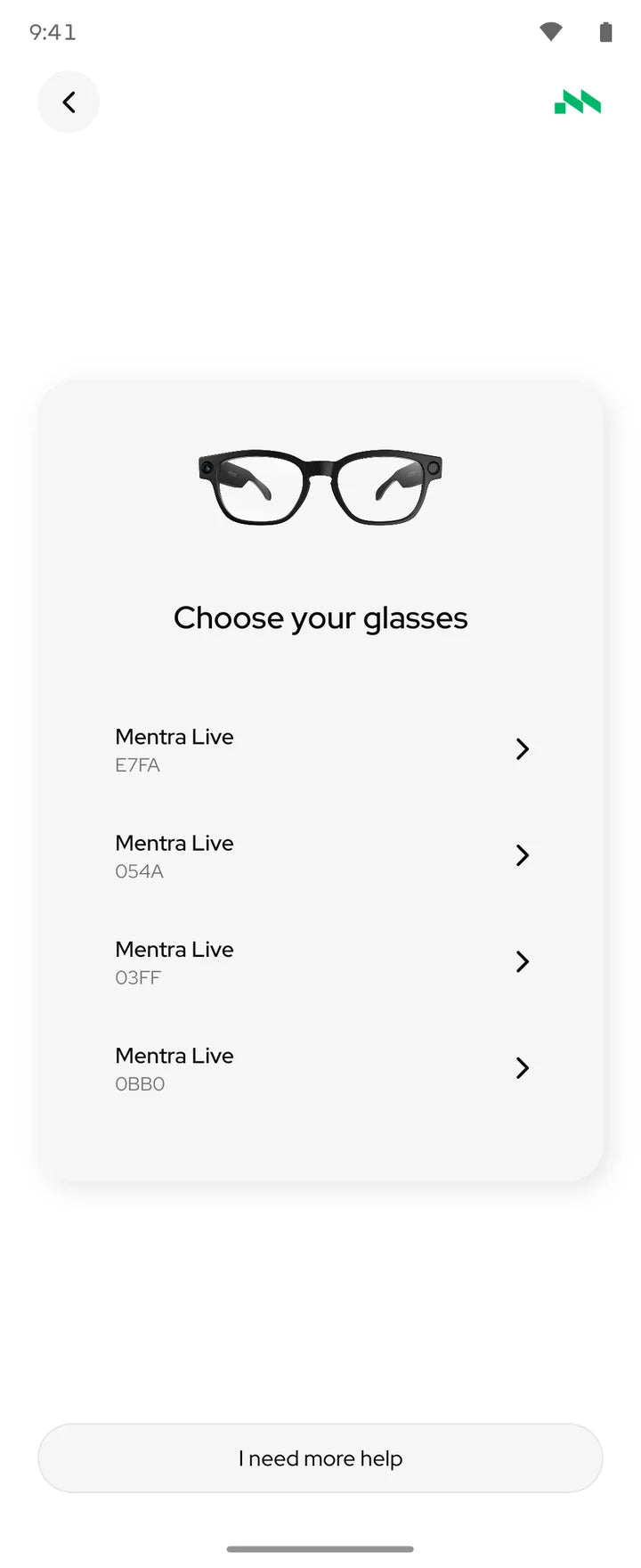
Turn on your glasses and keep them next to your phone. Tap Set up with glasses, choose Mentra Live, then pick your pair.
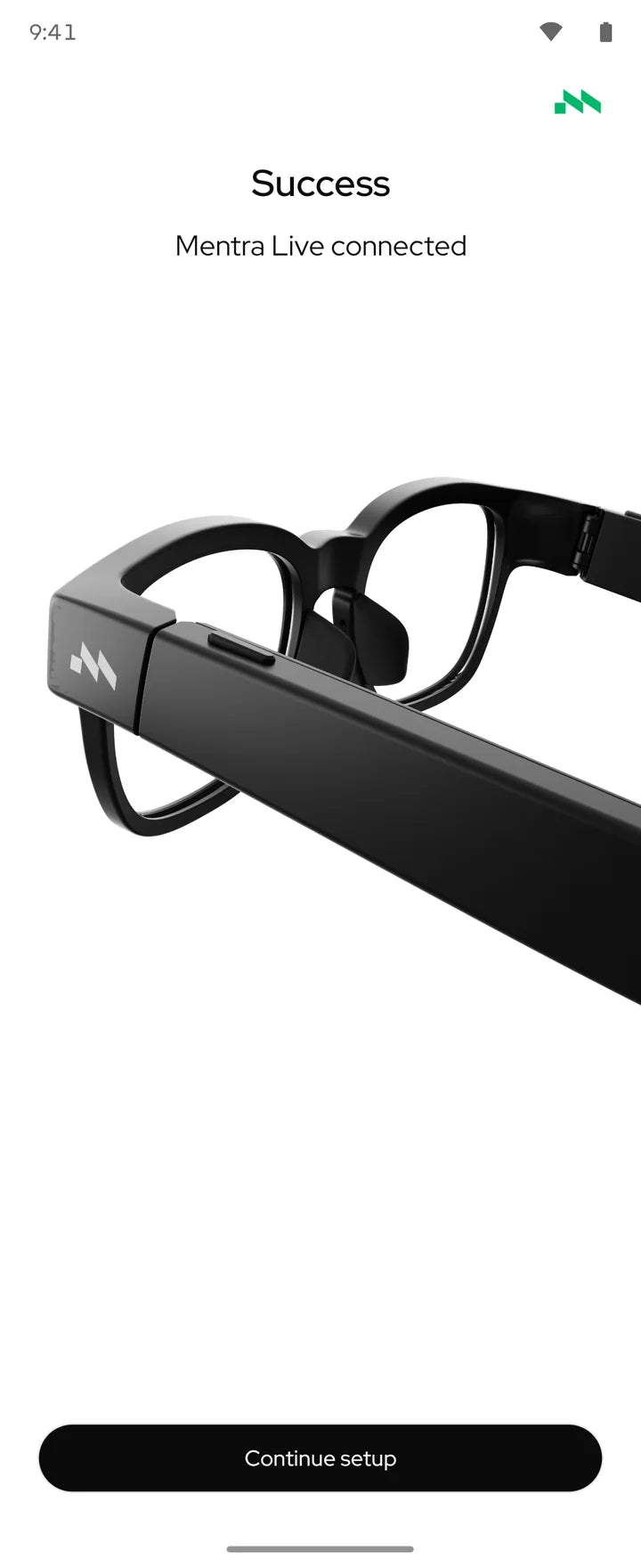
Accept the Bluetooth pairing requests on your phone. When you see Success, tap Continue setup. You can skip the tutorials that follow.
Make a Teams call
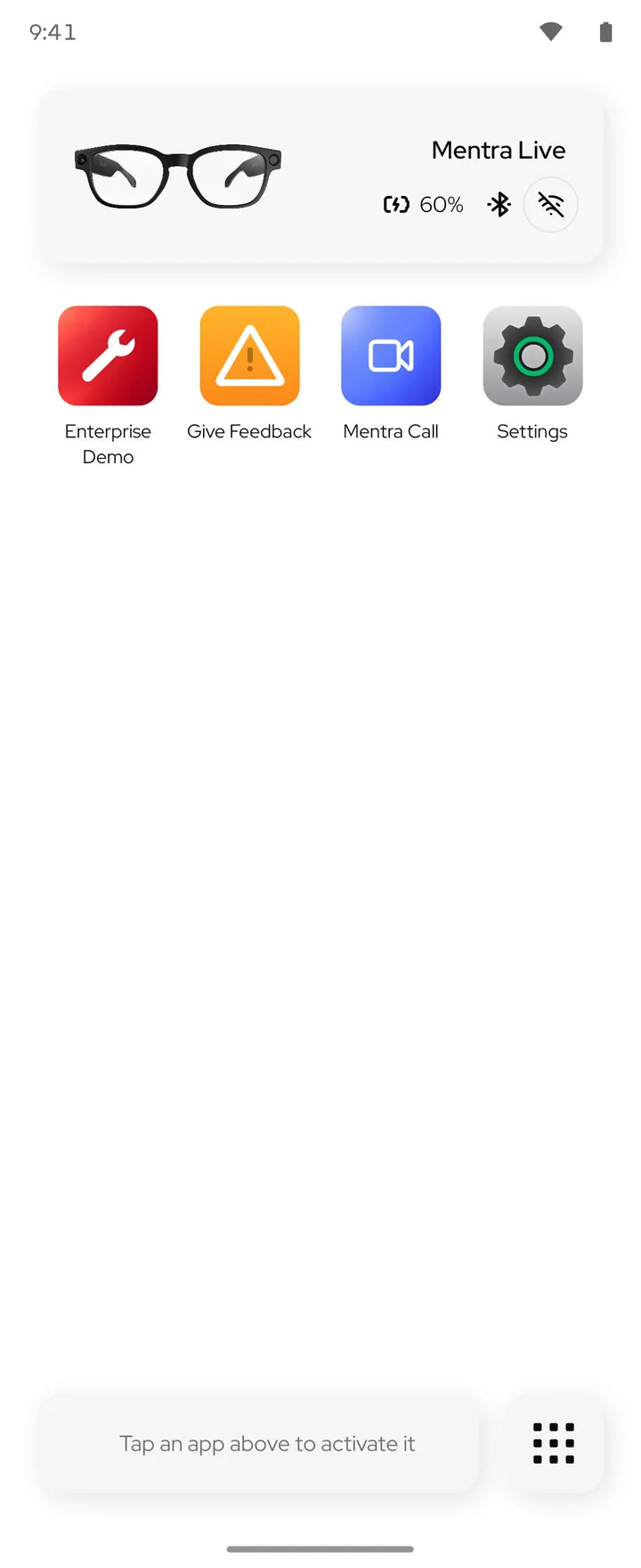
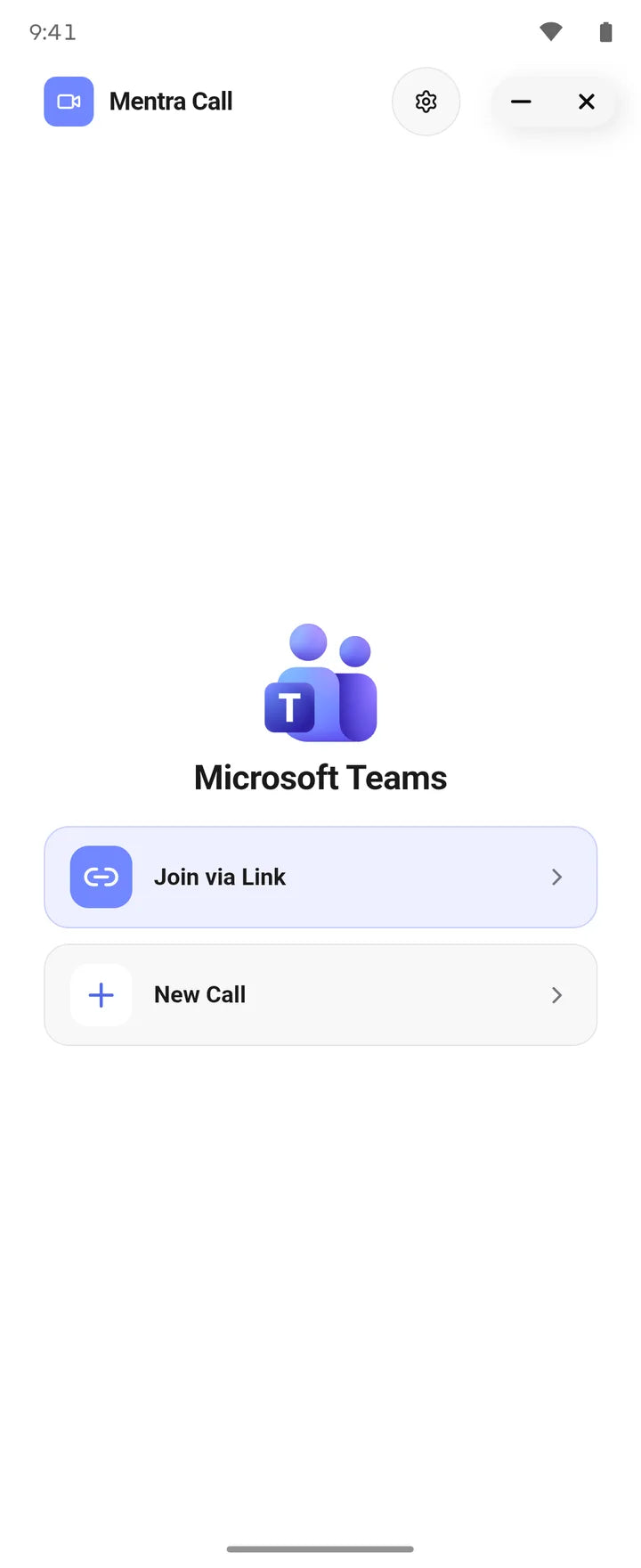
You’re on Acme’s home screen, with the apps Acme chose for its employees. Tap Mentra Call.
Tap New Call to start a Teams meeting, or Join via Link to join one that already has a link.
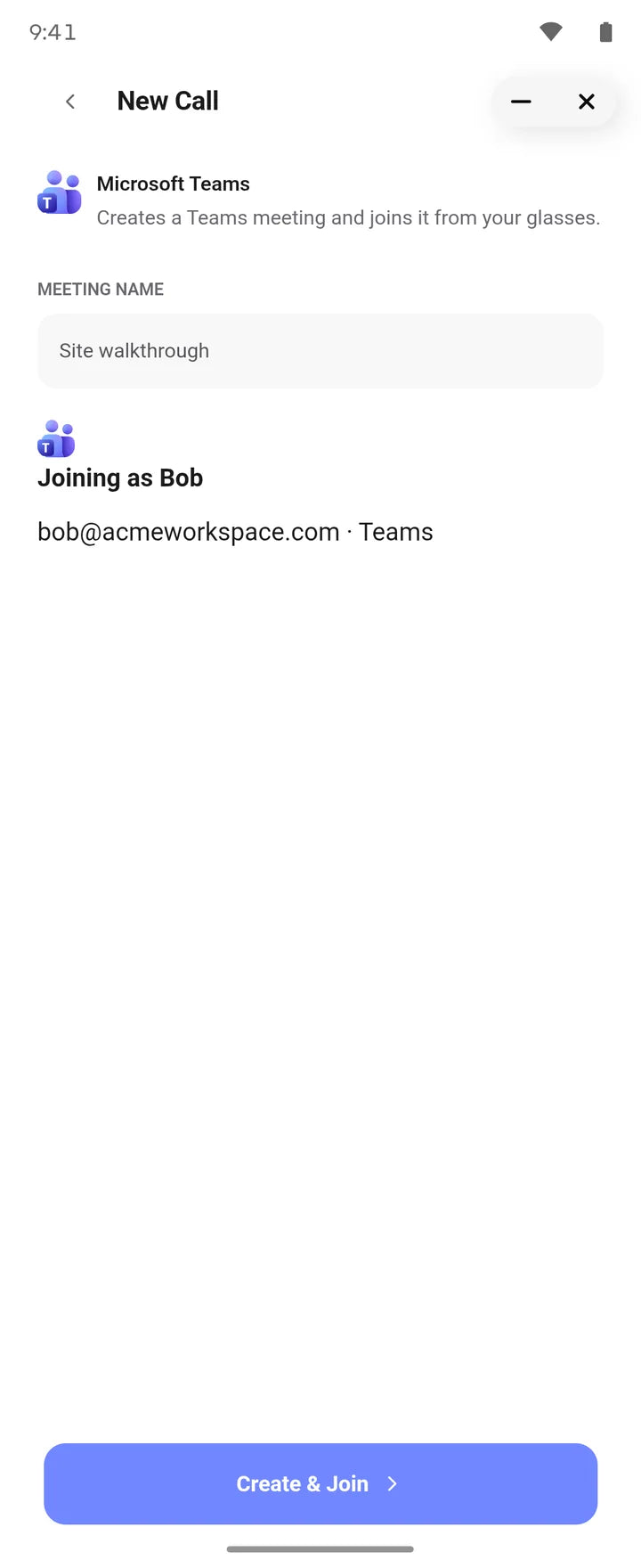
Name the meeting and tap Create & Join. You host it with your Acme account.
Share the call
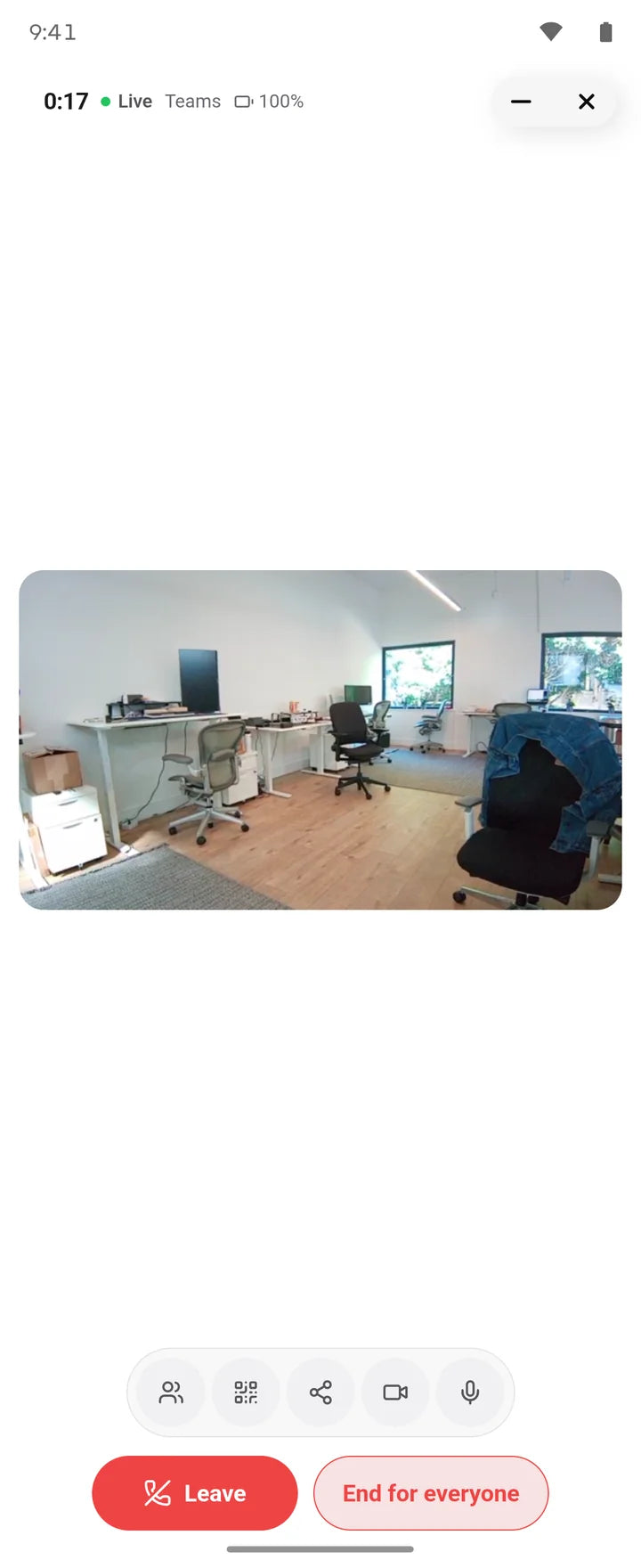
When the call starts, tap the share button and send the link to a colleague. Once they join in Teams, they see what your glasses see.
If something doesn’t work
I’m already signed in to the Mentra App
Open Settings, then Profile, and tap Log Out. The app returns to its first screen, where you can tap Sign in to your organization.
My glasses aren’t in the list
Check that Bluetooth is on and your glasses are charged, turned on and next to your phone. Then go back and choose Mentra Live again.
Microsoft won’t sign me in
Type the demo email and password exactly as they were sent. If it still fails, reply to your Mentra contact.
Everything you just used belongs to Acme.
The web address, the Microsoft sign-in, the apps on the home screen and the Teams calls all run in Acme’s own Azure subscription. Mentra Private Cloud sets up the same thing for your company.
- Your Azure
- Mentra’s services, the database and feedback reports run in your company’s Azure subscription.
- Your sign-in
- Employees use their Microsoft work accounts. Only people you assign can sign in, and your MFA rules apply.
- Your apps
- You choose which apps employees get. Mentra Call joins your Teams meetings from the glasses.